
We’ve all had that moment.
You sit down at your computer, ready to get something done, and suddenly everything feels slow. Programs take longer to open, your browser starts lagging, and even simple tasks feel like they’re taking twice as long as they should.
It’s frustrating, especially when you rely on your computer every day to get work done.
The tricky part is that there isn’t just one reason why a computer slows down. There are dozens of possible causes. But in our experience working with small and mid-sized businesses, a few common issues come up again and again – and the good news is, many of them are surprisingly easy to fix.
Let’s walk through three of the most common reasons your computer might be slow, and what you can do about it yourself.
1. Your Computer Needs Updates
This is one of the simplest and most overlooked reasons behind a slow device.
Even if you have automatic updates turned on, it’s still worth checking manually from time to time. It only takes a minute, and it can make a noticeable difference.
To check, go to Settings → Windows Update → Check for updates.
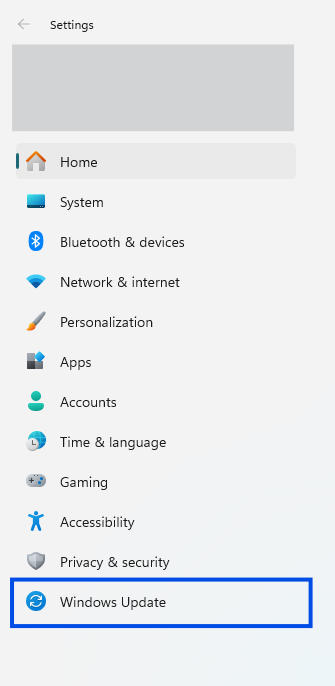
Even if your system says it’s up to date, take a quick look at when the last update was installed. If it’s been more than a week or two, it’s a good idea to run it again. For example, this screenshot says that we are up to date, but the date last update took place was almost a month ago (day this post has been published is April 10, 2026)

Updates don’t just add new features. They fix bugs that can slow your system down, patch security vulnerabilities, and improve overall performance. Skipping updates might not cause issues right away, but over time, your system can become less stable and less efficient.
If you’re using a Lenovo laptop, you have an extra advantage here. Lenovo devices come with a built-in tool called Lenovo Vantage, which acts as a centralized hub for checking system health, running updates, and identifying potential issues.
It’s a simple way to stay on top of your device’s performance – and one of the reasons we often recommend Lenovo as a reliable option for business users.
Read our blog post on Lenovo Vantage if you would like to learn more: What Is Lenovo Vantage
2. You Haven’t Fully Shut Down Your Computer in a While
Here’s something many people don’t realize: restarting your computer isn’t the same as shutting it down.
Most of us close the lid on a laptop or hit “restart” when something feels off, but rarely do a full shutdown. Over time, that can start to impact performance.
If you’re not sure how long your computer has been running, you can check it easily. Open Task Manager (press Ctrl + Alt + Delete), go to the Performance tab -> CPU, and look at the Uptime at the bottom.
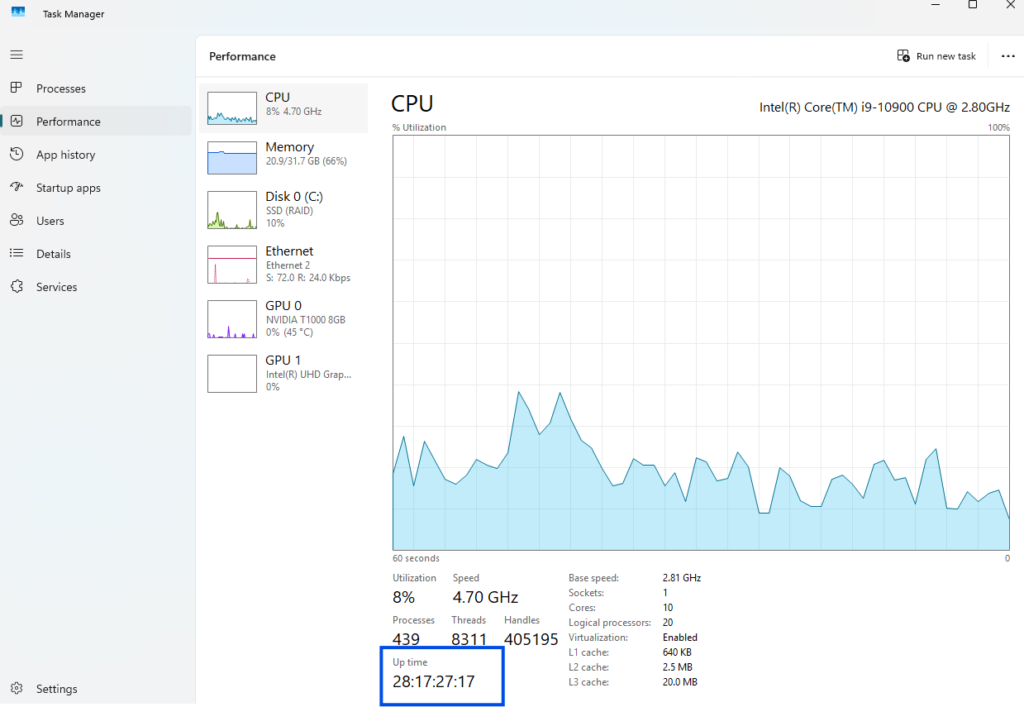
If that number shows 7-14 days your system likely just needs a proper reset.
Think of it this way: restarting your computer is like clearing your memory, resetting background tasks, and your system starts fresh.
It’s a small step, but it can have a surprisingly noticeable impact. If it’s been a while, try shutting your computer down completely and starting it back up. In many cases, that alone can improve performance.
3. Your Computer Might Not Have Enough Resources
Sometimes, the issue isn’t what you’re doing – it’s what your computer is capable of handling.
Over the past few years, the way we use computers has changed quite a bit. Between multiple browser tabs, video calls, cloud applications, and tools like Microsoft Teams, the demand on your system is much higher than it used to be.
A few years ago, 8GB of RAM was considered perfectly fine for everyday work. Today, for most business users, 16GB is closer to the standard for smooth performance.
If your device is struggling, you might notice things like programs taking longer to open, slowdowns when switching between tasks, or freezing during meetings. In many cases, that comes down to limited memory, lack of storage space, or an older processor trying to keep up with modern applications.
When it comes to buying a new computer, it’s natural to focus on price. But going with the lowest-cost option often means you’ll run into performance issues sooner and need to replace the device more quickly.
In many cases, it’s more cost-effective in the long run to invest in a system that matches your needs and can keep up with your workload over time.
That’s why we often recommend Lenovo business devices, especially newer models designed for today’s work environments. Many of these are now Copilot-ready PCs, built to support AI-powered features in Windows 11 and handle modern applications more efficiently.
A Quick Note on Windows 10 vs Windows 11
f your device is still running Windows 10, it may also be worth planning ahead.
With Windows 10 approaching end-of-life, newer systems running Windows 11 are better optimized for performance, security, and newer tools like Microsoft Copilot. While you don’t need to upgrade immediately, it’s something to keep in mind – especially if your current device is already showing signs of slowing down.
Final Thoughts
A slow computer doesn’t always mean something is broken. In many cases, it comes down to a few simple things that are easy to overlook – updates that haven’t been run, systems that haven’t been fully restarted, or hardware that’s no longer keeping up with daily demands.
Starting with these three areas can often resolve the issue faster than you’d expect.
And if things still don’t feel right after that, it may be time to take a closer look.
At Skycomp Solutions, we work with businesses to make sure their technology is running efficiently, securely, and in a way that actually supports their day-to-day operations. Whether it’s troubleshooting performance issues or helping choose the right devices for your team, we’re always here to help when you need it.